


Problems with Desktop Postage Software: Causes, Fixes, and Alternatives
What if a postage software crash points to a workflow problem, not just a bad install? Problems with desktop postage software can bring routine mailing to a halt: the app freezes, a printer or scale disconnects, or an import fails just as a batch is ready. It’s frustrating, especially when you’re unsure whether a repair could put settings or unfinished work at risk.
Some errors have a targeted fix. Others keep returning because the software depends on a particular computer, operating system, peripheral, or batch process. This guide will help you identify likely causes, choose low-risk troubleshooting steps, and know when to stop before risking work in progress.
If desktop maintenance is becoming part of every mailing run, the issue may be the workflow itself. We’ll compare desktop tools with online document printing and mailing, where you can submit files through a web portal, email, or API for printing, folding, postage, and mailing without relying on a local desktop setup. Diagnose the interruption, protect your work, and decide which approach fits your recurring letter workflows.
Key Takeaways
- Distinguish crashes, slowdowns, print errors, import failures, and device-recognition issues before choosing a fix.
- Problems with desktop postage software can stem from different sources, so identify what changed instead of assuming every symptom has the same cause.
- Protect work before troubleshooting: record the error, check connections, test a small job, and avoid removing settings or files without a backup.
- Desktop postage tools can suit parcel-label workflows, while recurring document mail may be easier to manage through an online process.
- Submitting documents by portal, email, or API can bring printing, folding, postage, and mailing into one workflow.
Problems with desktop postage software: the symptoms that disrupt mailing
A routine postage task can stop without warning. The software closes while you prepare a shipment, a print command seems to hang, or a scale that worked yesterday disappears from the device list. These problems with desktop postage software can delay dispatch and leave staff wondering what completed and what still needs attention.
Desktop postage software is locally installed software used to prepare postage on a computer. It connects postage tasks with a particular workstation and, often, connected devices. The technology has evolved alongside computerized postage and web-enabled stamps, but the visible symptoms still need careful sorting before you act.
How to recognize the type of desktop postage software problem
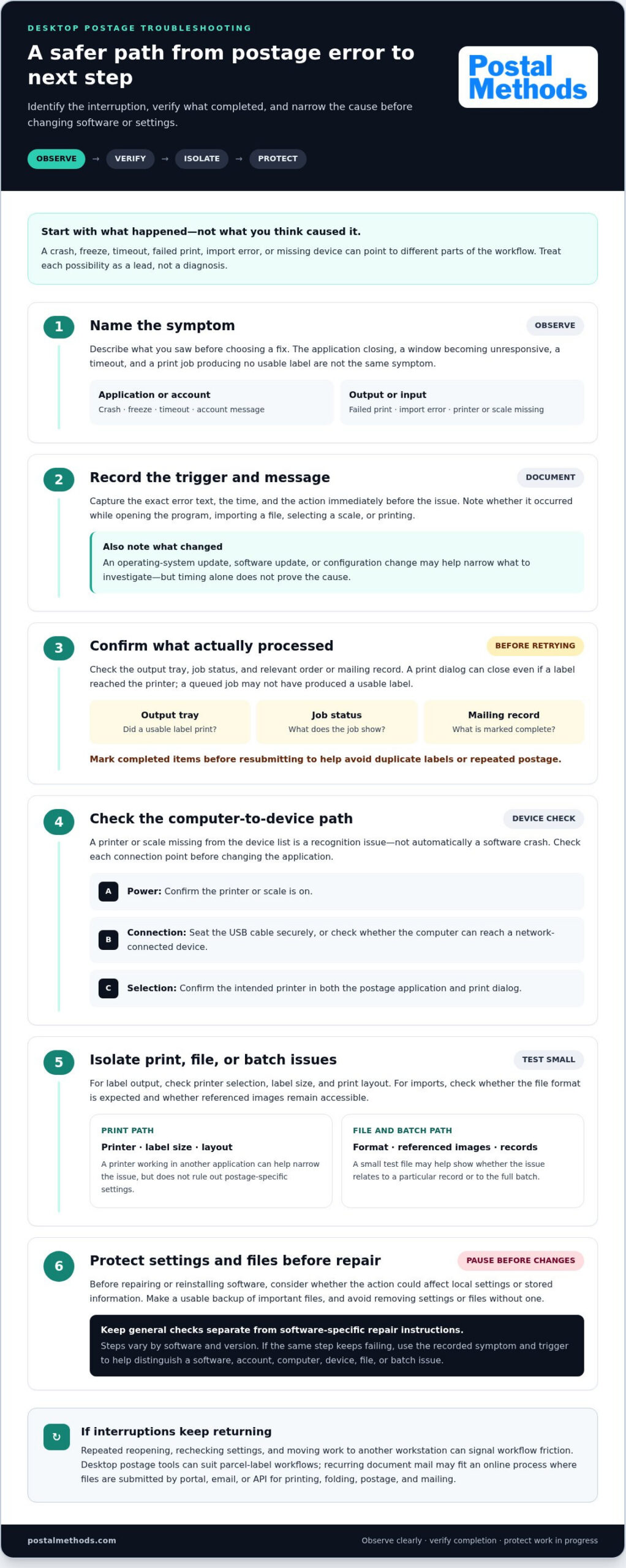
Start with what you observed, not what you suspect caused it. A crash means the application closes or returns to the desktop. A freeze leaves the window open but unresponsive. A timeout may appear when the program waits for an account, network, or device response. A failed print occurs when the job is sent but no usable label comes out, or the output is incomplete.
Other signs can point to different parts of the workflow. An import error may affect a file or batch while the rest of the software remains usable. A printer or scale missing from the device list is a recognition issue, not automatically a software crash. Check whether the printer is powered on, whether a USB cable is seated, and whether a network-connected device is reachable. Note any account message separately from hardware symptoms.
Capture the exact error text, the time, and the action immediately before the issue. For example, record whether it happened while opening the program, importing a file, selecting a scale, or printing. That short log gives you a clearer starting point than a general report that “postage stopped working.”
Why recurring postage software problems matter
A single interruption may be temporary. Repeated failures turn into workflow friction: staff spend time reopening jobs, rechecking settings, and shifting work to another workstation. If a dispatch deadline is close, even a short pause can compress the time available to prepare and verify outgoing mail.
Most importantly, confirm what actually processed before retrying. A print dialog can close even if a label reached the printer, while a job that appears queued may never have produced a usable label. Check the output tray, the job status, and the relevant order or mailing record. Mark completed items before resubmitting them. This helps prevent duplicate labels, repeated postage, or the wrong assumption that a batch is finished.
An interruption doesn’t automatically mean data was lost or the software is defective. Treat each event as a signal to verify the job and document the pattern. If the same step fails again, those details can help distinguish an isolated hiccup from a recurring workflow problem.
What causes desktop postage software to crash, freeze, or misprint?
The same symptom can have several causes. A frozen screen might point to a busy computer, a device that isn’t responding, or a software component that needs attention. A misprinted label could stem from printer selection or layout settings rather than a damaged installation. Treat each possibility as a lead, not a diagnosis.
A repeatable error message and the action that triggers it help narrow a software problem faster. Note whether the issue began after an operating-system update, software update, or configuration change. Timing can help identify what to investigate, but it doesn’t prove the change caused the problem.
Software, account, and computer-related causes
Installation files or supporting components may become damaged or outdated. The application may also lack permission to access a file, device, or system resource. If several programs are running or a large batch is processing, limited computer resources can contribute to slow responses. An account-related prompt or connection issue may look like an application failure, so record the message before changing settings.
Separate general checks, such as restarting the computer or confirming that the application has the right file permissions, from software-specific repair instructions. The steps vary by software and version. Before repairing or reinstalling, consider whether the action could affect local settings or stored information, and make a usable backup of any important files.
Printer, scale, file, and batch-processing causes
Check the path from computer to output. Does the operating system recognize the printer or scale? Is the intended printer selected in both the postage application and the print dialog? For a USB device, confirm that the connection is secure. For a network device, check whether the computer can reach it. A working printer in another application can help narrow the issue, but it doesn’t rule out postage-specific settings.
Files and batch jobs add another layer. An import can fail if the file is in an unexpected format or references an image stored at a location the computer can no longer access. A small test file may help show whether the issue relates to a particular record or to the full batch. Avoid assuming that a larger job is the cause until you’ve compared results.
- Label output: Check the selected printer, label size, and print layout.
- Postage processing: Check the account or device message associated with the transaction.
- Packing slips: Review their separate printer and page settings.
These workflows can share a workstation but rely on different configurations. The mailing industry spans businesses and logistics operations, including those represented by the National Association of Direct Mail and Logistics. For recurring letters, an online document mailing workflow can reduce dependence on local print setups. Online document printing and mailing brings document submission, printing, folding, postage, and mailing together.
How to troubleshoot desktop postage software without creating more work
Take a measured approach. The goal is to isolate the failure while protecting work already in progress, not to change several settings and lose track of what helped. Before you retry a job, save open work and check whether any postage or print task may already have gone through. This is especially important if the software stopped responding after you submitted a transaction.
A first-pass checklist for common errors
Start with reversible checks. Record the software name and version, operating environment, exact error text, and the task underway. Then follow this sequence. Stop before a test if it could create duplicate postage, labels, or outgoing mail.
- Save and document. Save open work if the application still responds. Note the time and what happened immediately before the error.
- Check connections. Confirm the computer, printer, and scale have power. Reseat cables, check network access where relevant, and verify the intended printer is selected.
- Compare behavior. If safe, see whether another application can print. This can help narrow the issue, though it won’t prove where the cause lies.
- Test cautiously. Use a small, non-duplicate test only when you can confirm it won’t purchase postage or send mail again. Check the result before resuming a batch.
Keep the notes together. If an error appears only during one action, such as opening the program or importing a file, that detail can make the next diagnostic step more precise.
When to stop rather than experiment
General checks like verifying power and printer selection apply across many setups. Repair tools, updates, profile resets, and reinstall steps are different: their effects depend on the application and version. Don’t delete profiles, files, or settings unless you understand what they contain and have a usable backup.
Stop troubleshooting if the application keeps crashing, a repair step is unclear, or you can’t confirm whether postage was purchased. Avoid repeated retries until the transaction status is clear. That pause helps prevent duplicate charges or labels and preserves a cleaner record of what happened.
Protect sensitive information, too. Don’t post documents, account details, passwords, or screenshots containing private data in public forums. If you need to keep diagnostic details, record only what is relevant and store it securely. Problems with desktop postage software can be frustrating, but a clear record and a firm stop point are safer than improvised changes.
Desktop postage software vs. online mailing: which workflow fits?
A software failure doesn’t automatically mean it’s time to replace your setup. Start with the job your team needs to complete. Desktop postage software is often a practical fit for shipping operations built around parcel labels, shipping orders, and locally managed postage devices. Online document mailing serves a different purpose: sending business letters and documents through a workflow that handles physical printing and mailing.
When desktop postage software remains the right fit
If your daily work centers on preparing parcel labels and coordinating shipments, desktop tools may still match the operation. They can be part of a workflow that depends on local devices and shipping processes. Judge recurring interruptions against those requirements: a one-off error may need troubleshooting, while frequent downtime that disrupts core tasks may signal a larger mismatch. The problem alone doesn’t settle the decision.
Compare the workflows by what they ask your staff to manage:
- Setup: Desktop tools are installed and configured on a computer. An online document workflow starts with submitting files through a web portal, email, or API.
- Devices: Desktop postage can depend on the workstation and connected printer or scale. Online document mailing reduces dependence on a local setup for printing and mailing letters.
- Output: Parcel-label software prepares shipping labels. Document mailing turns submitted letters into printed, folded, postage-paid mail.
- Repeatability: For recurring work, consider how easily staff can repeat the process and confirm what has been completed.
When online document mailing can reduce desktop friction
For invoices, notices, legal correspondence, and other letters, the central task isn’t preparing a parcel label. It’s getting a document printed, folded, stamped, and mailed. Postal Methods handles physical document mail through online submission and fulfillment.
This distinction matters. Submitting a document online is not the same as printing a parcel label: it shifts the printing and mailing steps for letters away from a local desktop setup. A portal can suit a team submitting documents through a web workflow; email or RESTful API access may fit other submission processes. Choose based on how your organization prepares and sends recurring correspondence.
If repeat letter jobs are creating ongoing desktop work, explore automated mailing services as a way to streamline that workflow. For a closer look at the decision to outsource letter production, read about outsourced letter printing and mailing.
For recurring business letters, move document printing and mailing online and let your team focus on preparing the correspondence rather than managing each local production step.
Move recurring document mail from desktop tasks to a simpler workflow
If your team regularly sends letters, invoices, notices, or medical documents, postage software may be handling only one part of a larger task. You prepare the file, print it, fold it, apply postage, and arrange mailing. An online document mailing workflow can move those production steps out of the local desktop process: prepare the document, submit it, and have printing, folding, postage, and mailing handled through one service.
This approach is for physical document mail, not parcel shipping. Keep parcel labels and carrier-specific shipping work in the tools designed for those jobs. But if recurring correspondence is a source of problems with desktop postage software, separating letter production from parcel workflows may reduce dependence on a particular workstation and its connected devices.
Match the submission method to the mailing task
Choose the submission route that fits how your team already works. A web portal provides an online way to submit documents for mailing. Email-to-mail suits workflows that begin with sending a document by email. For businesses integrating document delivery into an existing system, RESTful API access offers a programmatic route. Each method moves documents into a physical mailing process without treating them as parcel-label jobs.
Sensitive medical correspondence calls for careful handling. HIPAA-compliant options are available for sensitive medical documents, while invoices, legal notices, and other business letters can be routed through document printing and mailing services. Match the option to the type of mail and the way your organization submits it.
Set up a practical transition from desktop processing
Start with a defined, recurring category rather than changing every mailing process at once. List the letters your team produces regularly, who prepares each document, and how it currently gets printed and sent. Then separate document mail from parcel-label tasks that still require shipping software, carrier-specific steps, or local postage devices.
- Select a suitable workflow. Identify recurring invoices, notices, legal correspondence, or medical documents that could move to online submission.
- Choose a submission route. Use the portal, email, or API based on how staff or systems prepare the documents.
- Keep the boundary clear. Continue handling parcel shipping through the appropriate shipping workflow; use document mailing for letters that need printing and mailing.
For teams considering programmatic submission, the guide to API for physical mail explains this approach in more detail. A gradual, task-by-task transition can clarify whether online mailing suits your recurring correspondence without disrupting parcel operations.
If recurring letters are the part of the process creating extra desktop work, send documents through an online mailing workflow and move them from prepared files to printed, folded, postage-paid mail.
Choose a smoother path for recurring mail
Let the next mailing cycle be a chance to simplify, not just repeat the same steps. Identify one recurring document task that takes staff from preparing a file to handling the physical mail. Decide where that task should begin, who owns it, and what a completed mailing needs to look like. That small review can reveal whether problems with desktop postage software are affecting parcel shipping, document mail, or both.
For recurring letters, invoices, notices, and sensitive medical documents, Postal Methods provides a workflow that handles printing, folding, postage, and mailing through one service. Submit documents through a web portal, email, or RESTful API. HIPAA-compliant options are available for sensitive medical documents.
You don’t need to rethink every mailing process at once. Start with the document workflow that creates the most avoidable handling, then choose a submission route that fits your team. Move recurring document mail online and give your staff a clearer path from prepared file to mailed correspondence.
Frequently Asked Questions
Why does desktop postage software keep crashing?
Repeated crashes can have several causes, including damaged installation components, limited computer resources, permissions, or a connected device that stops responding. Look for a pattern: does the program close during startup, only when importing a file, or after the scale is connected? Note the software version and exact trigger. If the failure began after a system or software change, record that timing, but don’t assume it proves the cause.
Can desktop postage software problems be caused by a scale or printer?
Yes. A disconnected scale, unavailable printer, or incorrect printer selection can interrupt a postage task even if the application itself is running. Notice whether the device is missing from the software, appears unavailable, or accepts a job without producing output. If another application can print, that’s useful diagnostic information, though it doesn’t rule out a postage-software setting. Check device status before changing the application configuration.
What should I do if postage software freezes during a batch?
Don’t immediately relaunch the batch. First, give the application time to respond and check whether any items have already printed or processed. Preserve the original import file and note the last visible item or status, if available. Before restarting or resubmitting, establish whether postage was purchased and which records completed. If you can’t determine the batch’s state, pause rather than risk duplicate output.
Can a software update cause desktop postage problems?
An update can be relevant if problems begin soon after it, but timing alone doesn’t establish that it caused them. Record the update date, software version, operating-system changes, and the task that now fails. Avoid attempting a rollback or reinstall without understanding how it could affect saved configurations, access, or other mailing tasks.
Is online mailing software the same as desktop postage software?
No. Desktop postage software is installed locally and is commonly used to prepare postage or parcel labels as part of a shipping workflow. Online mailing is a service for submitting documents to be physically printed and mailed. The distinction is the output: a shipping label helps move a parcel through a carrier process, while a mailed letter requires document production and postal handling. Choose by task, not just by interface.
Can I use an online mailing service for invoices or medical letters?
Yes. Postal Methods handles invoice printing and mailing, and offers HIPAA-compliant options for sensitive medical documents. Before submitting, confirm that the file is final, the recipient information is correct, and the intended document version is attached. For medical correspondence, follow your organization’s privacy procedures and use the appropriate service option. Those checks help prevent avoidable address or document errors before the file enters the mailing workflow.
When should I stop troubleshooting postage software myself?
Stop when failures continue after basic checks, the next step could change or delete settings, or you can’t tell whether postage was purchased. Don’t post account credentials or sensitive documents in public forums. If the issue involves protected information, follow your organization’s privacy or security process before sharing diagnostic files.